How to Make Your First Deposit on VM Blast Using GCash
Why GCash Works Well for VM Blast Deposits
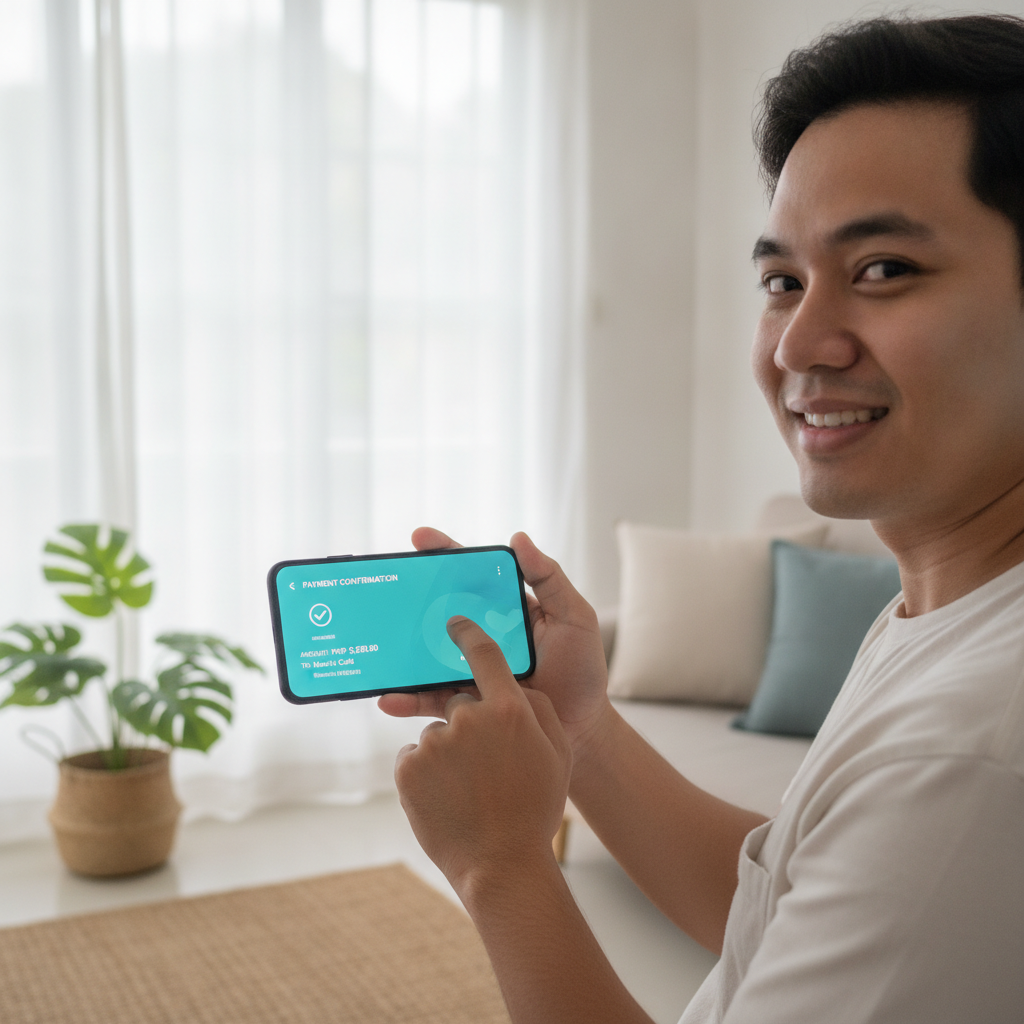
GCash is one of the most popular e-wallet options for Filipino players making their first deposit on VM Blast. The platform accepts GCash alongside Maya and bank transfers, but GCash stands out for its speed and wide adoption across Metro Manila and the provinces. Most deposits process within minutes, and you can fund your account from your Android phone without needing a physical bank branch.
Before you begin, make sure your GCash account is fully verified and has enough balance to cover your intended deposit. VM Blast requires players to be 21 years or older to register and deposit.
Minimum Deposit Amount on VM Blast
VM Blast sets a minimum deposit of PHP 100 for GCash transactions. This low entry point makes it accessible for Filipino players who want to try slots, live dealer games, or sports betting on PBA and NBA without committing a large amount upfront.
Most first-time users deposit between PHP 100 and PHP 500 to test the platform. There is no pressure to deposit more—start with an amount that fits your budget and gives you enough balance to explore a few games or place a handful of sports bets.
The maximum deposit per GCash transaction varies, but typical limits range from PHP 10,000 to PHP 50,000 depending on your GCash account tier. If you need to deposit more, you can make multiple transactions or contact VM Blast support for guidance.
Before You Deposit: Complete VM Blast Registration
You cannot make a deposit until you have a verified VM Blast account. If you have not yet registered, visit the VM Blast site or app, click the sign-up button, and provide your mobile number, email, and basic personal details. You may also need to upload a valid government ID for verification purposes.
Once your account is approved and you can log in to VM Blast, you are ready to make your first deposit.
Step-by-Step: Linking Your GCash Account and Making a Deposit
Step 1: Log In to Your VM Blast Account
Open the VM Blast website on your mobile browser or launch the VM Blast app if you have it installed on your Android device. Tap the Login button and enter your registered mobile number or email and password. If you have trouble logging in, use the "Forgot Password" link to reset your credentials.
Step 2: Navigate to the Deposit Section
After logging in, look for a Deposit, Cashier, or Wallet button. This is usually located in the top-right corner of the screen or in the main menu. Tap it to open the deposit page.
Step 3: Select GCash as Your Payment Method
VM Blast will display a list of payment options: GCash, Maya, bank transfer via InstaPay or PESONet, and possibly others. Tap GCash to proceed.
Step 4: Enter Your Deposit Amount
A text field will appear asking you to enter the amount you want to deposit. Type in your chosen amount—remember, the minimum is PHP 100. Double-check the number to avoid mistakes. Some players prefer to start with PHP 200 or PHP 300 to have a comfortable balance for slots or a few basketball bets.
Step 5: Confirm and Link to GCash
Tap the Deposit or Continue button. VM Blast will redirect you to the GCash payment gateway. If this is your first deposit, you may need to authorize VM Blast to connect with your GCash account.
On the GCash screen, log in with your GCash MPIN (the four- or six-digit code you use to unlock your GCash app). Review the transaction details: the amount, the merchant name (VM Blast or a payment processor it uses), and any fees. GCash typically does not charge a fee for casino deposits, but check the summary to be sure.
Step 6: Authorize the Payment
Once you have confirmed the details, tap Pay or Confirm. GCash will deduct the deposit amount from your wallet balance and send it to VM Blast.
You will see a confirmation message on the GCash screen. Do not close the page immediately—wait for VM Blast to redirect you back to its site or app. This can take a few seconds.
Step 7: Check Your VM Blast Balance
You should land back on the VM Blast deposit page or home screen. Look for your wallet balance, usually displayed at the top of the page. Your deposit should appear within one to five minutes. If it does not show up right away, refresh the page or check your transaction history in the VM Blast cashier section.
How Long GCash Deposits Take to Reflect in Your VM Blast Balance
Most GCash deposits to VM Blast are instant or near-instant, meaning your balance updates within one to five minutes. In rare cases, technical delays on the GCash side or VM Blast's payment processor can extend the wait to 15–30 minutes.
If your deposit has not appeared after 30 minutes, take these steps:
- Check your GCash transaction history in the GCash app. If the payment was deducted, note the reference number.
- Log out and log back in to VM Blast. Sometimes a fresh session triggers a balance refresh.
- Contact VM Blast customer support via live chat or email. Provide your GCash reference number, the deposit amount, and the time of the transaction. Support teams typically resolve deposit issues within a few hours.
Always keep a screenshot of your GCash receipt until your deposit is confirmed. This serves as proof of payment if you need to open a support ticket.
Screenshot Walkthrough of the Deposit Screen on Android
While the exact layout can vary depending on updates to the VM Blast site or app, the deposit flow on Android generally follows this pattern:
- Home Screen: After VM Blast login, you see your balance and a Deposit button prominently displayed.
- Cashier Page: Tapping Deposit takes you to a page listing payment methods—GCash, Maya, bank transfer, and others.
- GCash Option: Select GCash, and a form appears asking for the deposit amount.
- Amount Entry: You type in your amount (minimum PHP 100) and tap Continue.
- GCash Gateway: A new screen or pop-up opens showing the GCash logo, your linked mobile number, and the amount. You enter your MPIN.
- Confirmation: GCash displays "Payment Successful" and the reference number. You are redirected back to VM Blast.
- Balance Update: Your VM Blast wallet balance increases by the deposited amount.
Because VM Blast serves mobile-first Filipino players, the deposit interface is optimized for Android phones with straightforward buttons and minimal scrolling. Even first-time users typically complete a GCash deposit in under two minutes once they have their account set up.
Tips for a Smooth First Deposit
- Verify your GCash account tier. Unverified or semi-verified GCash accounts may face lower transaction limits. Upgrade to a fully verified account by submitting a valid ID to GCash to unlock higher limits and faster processing.
- Have enough balance. Make sure your GCash wallet has at least PHP 100 (or your intended deposit amount) before starting. Top up at a partner outlet, bank link, or remittance center if needed.
- Use a stable internet connection. Deposit transactions can time out on slow or unstable mobile data. Connect to Wi-Fi or move to an area with strong 4G/5G signal before initiating the deposit.
- Save your transaction reference. Screenshot or note the GCash reference number. If any issue arises, this number helps VM Blast support trace your payment.
- Start small. If this is your first time using VM Blast, deposit PHP 100 or PHP 200 to explore the platform. You can always make additional deposits later.
What Happens After Your Deposit Is Confirmed
Once your GCash deposit appears in your VM Blast balance, you are ready to play. Navigate to the Slots section for hundreds of slot machines and jackpot games, visit Live Dealer for real-time baccarat, blackjack, and roulette tables, or head to Sportsbook to bet on PBA, NBA, volleyball, and other events.
Minimum bets vary by game. Many slots accept bets as low as PHP 1 per spin, while live dealer tables may require PHP 50–PHP 100 per hand. Sports betting minimums depend on the market and event, but typical single bets start around PHP 10–PHP 20.
Your deposited funds stay in your VM Blast wallet until you use them for bets or request a withdrawal. If you decide to cash out later, you can withdraw winnings back to GCash, subject to any account verification and processing times set by VM Blast.
Responsible Gambling Reminder: Only Deposit What You Can Afford
VM Blast is an entertainment platform, and all betting carries risk. Never deposit money you cannot afford to lose. Set a budget before you start, and stick to it. If you find yourself chasing losses or gambling more than you planned, take a break or use responsible-gambling tools offered by VM Blast, such as deposit limits or self-exclusion options.
VM Blast is for players aged 21 and over only. If you or someone you know is struggling with gambling, seek help from a local support organization or counselor.
Summary
Making your first deposit on VM Blast using GCash is straightforward: log in, select GCash in the cashier, enter at least PHP 100, and authorize the payment with your GCash MPIN. Deposits typically reflect in your VM Blast balance within minutes, and you can start playing slots, live dealer games, or betting on PBA and NBA right away.
Keep your deposit within your budget, save your transaction reference, and reach out to VM Blast support if you encounter any delays. With GCash's wide adoption and fast processing, Filipino players across Metro Manila and the provinces can fund their accounts quickly and get straight to the action.