VM Blast Login Tutorial: Access Your Account on Android and Desktop
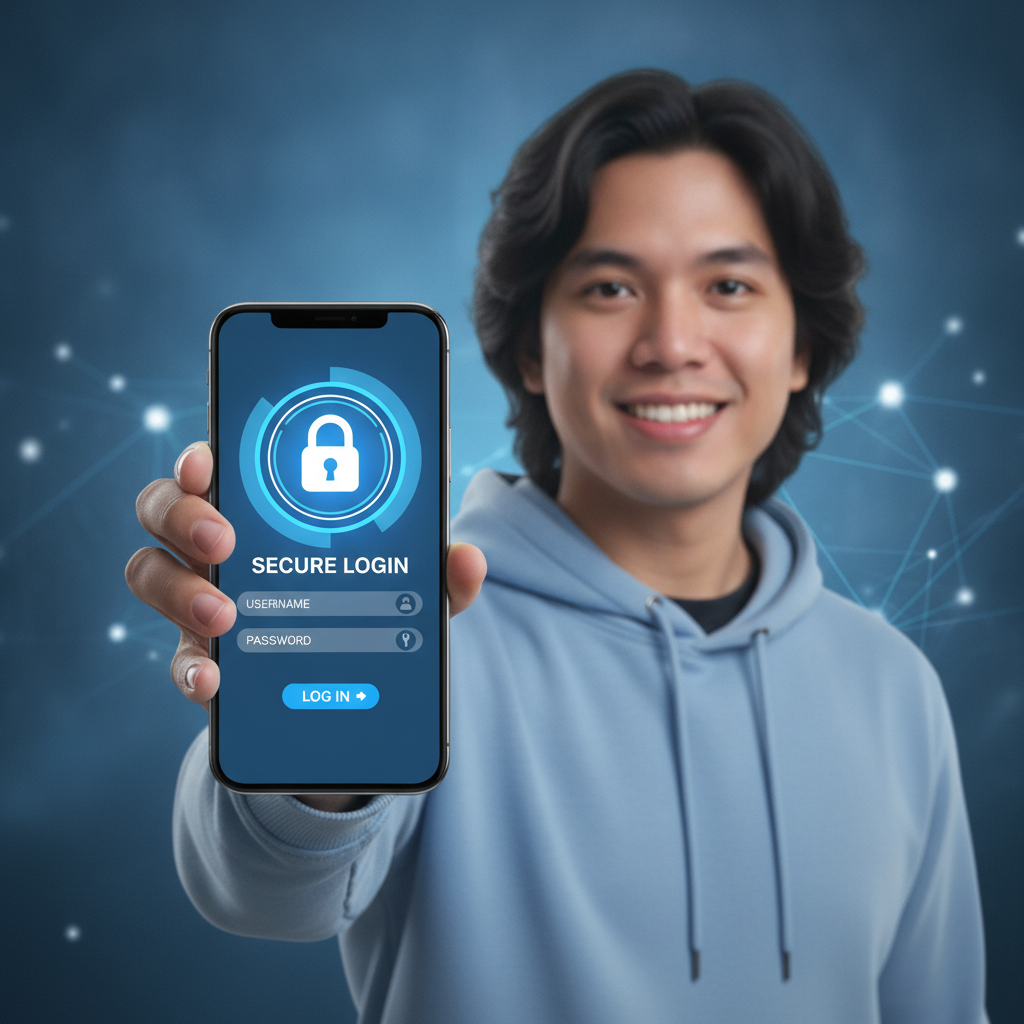
Where to Find the VM Blast Login Page on Mobile and Desktop
VM Blast provides a login page that works on both Android phones and desktop browsers. Most Filipino players use their mobile devices, so the platform is designed to be mobile-first.
On Android mobile:
Open your browser app—Chrome, Firefox, or any other browser you prefer. Type the VM Blast website address into the URL bar. The homepage will load, and you'll see a "Login" button in the upper-right corner of the screen. Tap it to reach the login page.
If you've visited VM Blast before, your browser may have saved the site as a bookmark. You can also add the login page to your home screen as a shortcut for faster access next time.
On desktop or laptop:
Go to the VM Blast website using any desktop browser. The "Login" button sits in the top navigation bar, usually next to the "Register" button. Click it, and a login form will appear—either as a pop-up window or on a new page.
Both the mobile and desktop login pages ask for the same information: your username (or registered email or mobile number) and your password. The layout adapts to your screen size, but the process is identical.
Entering Your Username and Password: What to Check if Login Fails
When you reach the login page, you'll see two fields:
- Username / Email / Mobile Number – Enter the credential you used when you registered your VM Blast account.
- Password – Type your password exactly as you set it during registration.
After filling in both fields, tap or click the "Login" or "Sign In" button.
Common reasons why login fails:
- Wrong username or mobile number. If you registered using your Philippine mobile number (for example, 09171234567), make sure you enter it in the correct format. Some platforms expect the country code (+63) at the front; others accept the leading zero. Try both formats if the first attempt doesn't work.
- Incorrect password. Passwords are case-sensitive. Check that Caps Lock is off, and re-type carefully. If you're on mobile, autocorrect or predictive text may insert spaces or change characters—type slowly or turn off autocorrect for the password field.
- Typographical errors. Double-check every character. An extra space, a missing letter, or swapping a number for a similar-looking letter (like "O" and "0") will cause the login to fail.
- Account not yet verified. If you just finished the VM Blast register process and haven't confirmed your mobile number or email, the system may block login until you complete verification. Check your phone for an SMS or your inbox for a confirmation email.
If you've checked all of the above and still can't log in, proceed to the password-recovery steps below.
Two-Factor Authentication and OTP Verification on Philippine Mobile Numbers
VM Blast may require two-factor authentication (2FA) or a one-time password (OTP) to confirm your identity, especially when you log in from a new device or a different IP address.
How OTP works:
- After you enter your username and password, the system sends a six-digit code by SMS to the Philippine mobile number you registered.
- A pop-up or new screen asks you to enter this OTP.
- Check your messages, find the code (it usually arrives within 30 seconds), and type it into the OTP field.
- Tap "Verify" or "Submit."
If the code matches, you're logged in.
What to do if the OTP doesn't arrive:
- Wait one to two minutes. Network delays from Globe, Smart, Dito, or other carriers can slow delivery.
- Check your signal strength. If you're in a low-coverage area in the provinces, step outside or move to a spot with better reception.
- Make sure your inbox isn't full. Some older Android phones block incoming SMS when storage is nearly full.
- Look for a "Resend OTP" link on the screen. Tap it to request a fresh code.
Why 2FA is required:
Two-factor authentication protects your VM Blast account from unauthorized access. Even if someone guesses or steals your password, they can't log in without the OTP sent to your phone. This is especially important when betting with real pesos through GCash, Maya, or bank transfer.
What to Do if You Forgot Your Password or Username
Forgetting login details is common, especially if you haven't used your VM Blast account in a while.
If you forgot your password:
- On the login page, look for a link that says "Forgot Password?" or "Reset Password." It's usually below the password field.
- Tap or click it. You'll be taken to a password-recovery form.
- Enter the mobile number or email address you used to register.
- VM Blast will send a password-reset link by SMS or email.
- Open the link on your phone or computer. You'll land on a page where you can create a new password.
- Choose a strong password—mix uppercase and lowercase letters, numbers, and a symbol if allowed. Avoid common words or your birthdate.
- Confirm the new password and save it. You can now return to the VM Blast login page and sign in.
If you forgot your username:
Usernames are harder to recover because they're unique to your account. Try these steps:
- Check old text messages or emails from VM Blast. Your welcome message or registration confirmation may include your username.
- If you registered using your mobile number or email as your username, try those first.
- Contact VM Blast customer support. Provide your registered mobile number and any other details (full name, date of birth, or recent deposit reference). Support can look up your username and send it to your verified contact method.
Always keep a secure note of your username and password—save it in a password manager app or write it down and store it safely offline.
Security Tips for Filipino Players: Keeping Your Account Safe
VM Blast accounts hold real money, whether you deposit PHP 100 or PHP 500 at a time through GCash, Maya, or bank transfer. Protecting your login credentials and personal information is essential.
1. Use a strong, unique password.
Don't reuse the same password you use for GCash, email, or social media. If one account is compromised, others remain safe. A strong password is at least eight characters long and mixes letters, numbers, and symbols.
2. Never share your login details.
No legitimate VM Blast representative will ask for your password. If someone claims to be from customer support and requests your password or OTP, do not provide it. This is a common phishing tactic.
3. Log out when using shared devices.
If you access VM Blast on a friend's phone, a computer at a shop, or any public device, always tap "Log Out" before handing the device back. This prevents the next user from accessing your account.
4. Enable two-factor authentication if optional.
If VM Blast offers 2FA as a setting you can turn on or off, keep it enabled. The extra step at login takes only seconds and dramatically improves security.
5. Avoid public Wi-Fi for deposits and withdrawals.
Public networks in malls, cafés, or transport hubs can be less secure. When you log in to make a deposit via GCash or check your balance, use your mobile data or a trusted home Wi-Fi connection.
6. Keep your phone's operating system and browser updated.
Security patches in Android updates and browser updates fix vulnerabilities that hackers exploit. Install updates as soon as they're available.
7. Watch out for phishing sites.
Scammers create fake VM Blast login pages to steal usernames and passwords. Always double-check the website address in your browser's URL bar before entering any details. Bookmark the official site to avoid typos.
8. Monitor your account activity.
Check your transaction history regularly. If you see a bet you didn't place or a login from an unfamiliar location, change your password immediately and contact VM Blast support.
Responsible Gambling Reminder
VM Blast is for players aged 21 and over only. Logging in to your account gives you access to slots, jackpot games, live dealer tables, sports betting on PBA, NBA, and volleyball, and bingo—all of which involve real money.
Set deposit limits that fit your budget. Treat every deposit as entertainment spending, not as a way to make money. If you feel you're spending more time or money than you can afford, take a break, use self-exclusion tools if available, or reach out to a local support resource.
Never chase losses, and never gamble with money you need for rent, bills, or daily expenses. Keep your account secure, play responsibly, and only bet what you're comfortable losing.
Final Checklist for a Smooth VM Blast Login
- Find the login button in the top corner of the VM Blast homepage (mobile or desktop).
- Enter your registered username, email, or mobile number and your password carefully.
- Complete OTP verification if prompted; wait for the SMS and enter the code.
- Use the "Forgot Password" link if you can't remember your password; follow the reset steps.
- Protect your account with a strong password, two-factor authentication, and smart security habits.
- Remember: 21+ only, and always play within your means.
With these steps, you'll be able to access your VM Blast account quickly and safely, whether you're logging in from your Android phone in Metro Manila or a desktop browser in the provinces. Keep your credentials secure, and enjoy a smooth experience every time you sign in.